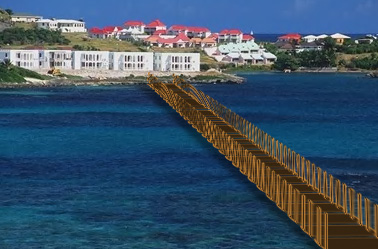
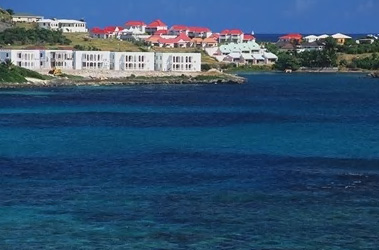
Start by opening an image with lake or river on which you want to build a bridge.
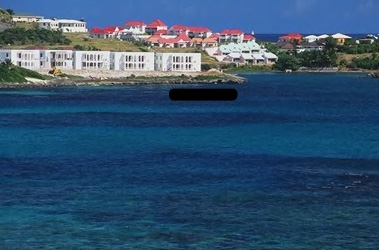
Create a rounded rectangle using rounded rectangle shape tool.
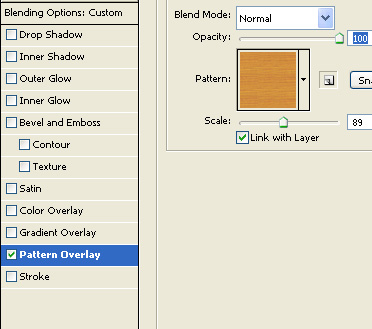
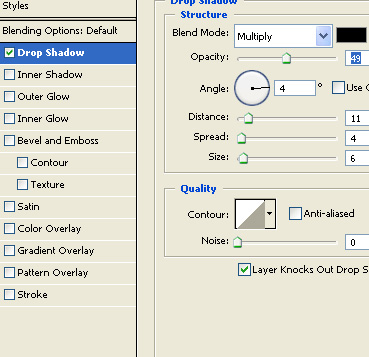
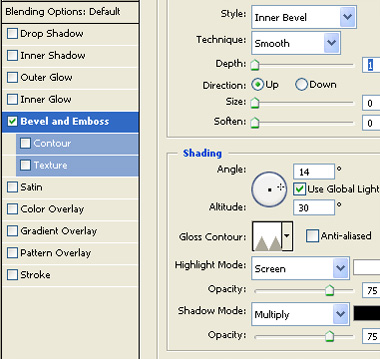
Double click the layer to open layer style window. Apply layer style with the settings shown.
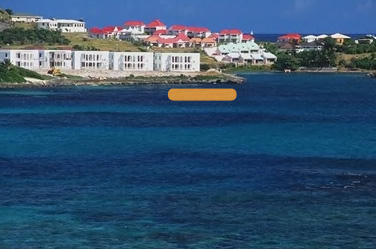
Create duplicates of this layer and place below each other.
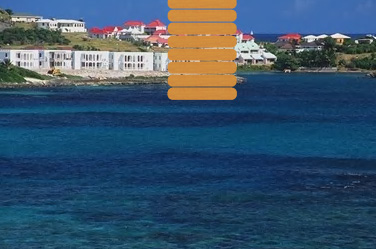
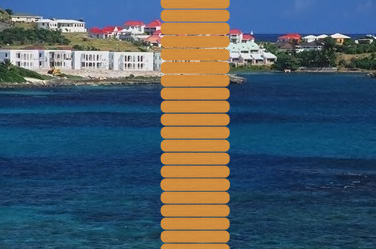
Merge all wood layers. Press Ctrl+T. Right click the layer and select distort. Adjust the nodes to get a shape like this.
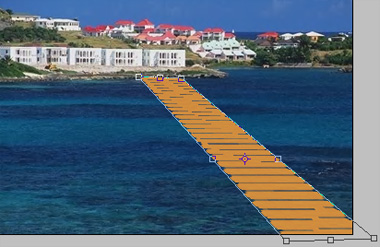
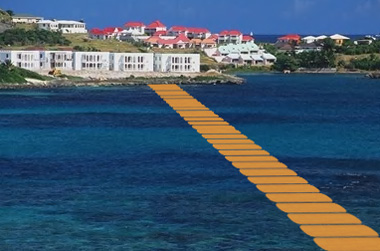
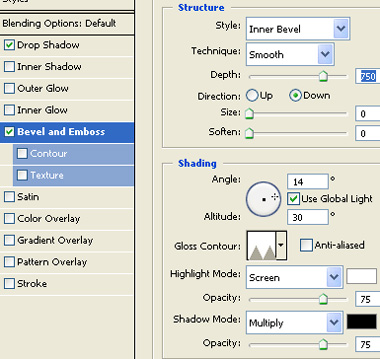
Double click the layer to open layer style window. Apply layer style with the settings shown.
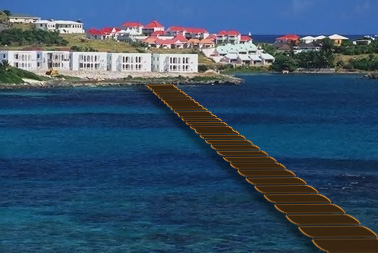
Similarly create other series of wooden stripes. Place horizontally.
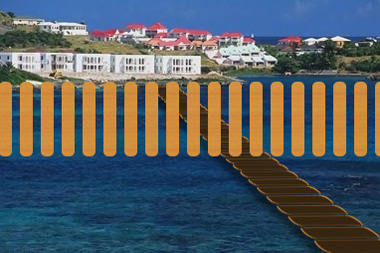
Merge these layers. Scale it down horizontally.
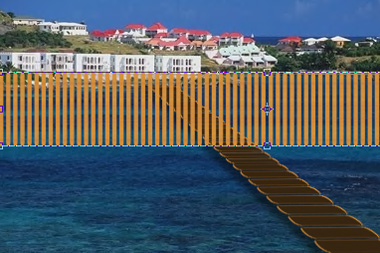
Press Ctrl+T. Right click the layer and select distort. Adjust the nodes to get a shape like this.
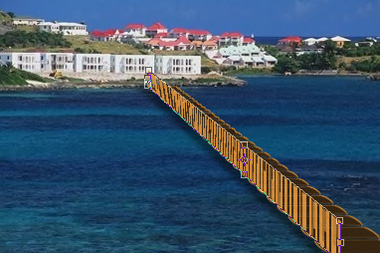
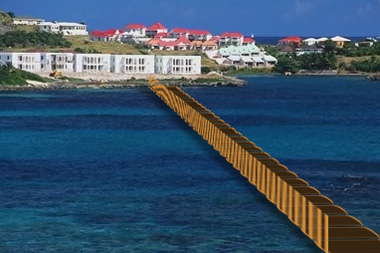
Double click the layer to open layer style window. Apply layer style with the settings shown.
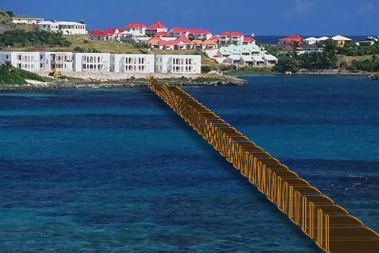
Duplicate the layer and place on the other side of the bridge.