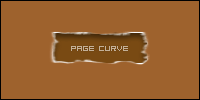
Step 1
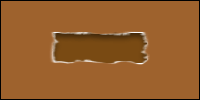
Create a new layer of width 200px and height 100px so we have enough room, fill the background with a color, i used #9e622d. Now get out your marquee tool and create a button sized image. Around 70x40 and fill it with a dark brown.
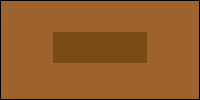
Step 2
Now get out the eraser and set it as grunge brush, begin to rub little gaps around the edges to make it look worn out.. like so.
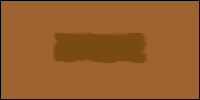
Step 3
Now duplicate this layer, fill it with a light color then drag it below your previously made rectangle worn out image.
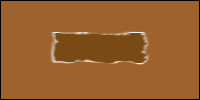
Step 4
Now with the main part of the image, add some blending effects. I used drop shadow to give it a indented 3d look.
Step 5
Now just add some text and you are complete! These are some of the best buttons to do for website layouts and rollovers, the outcome can be amazing.