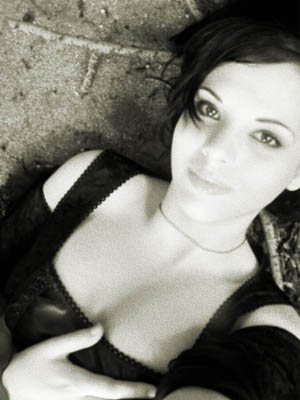
| One
thing that I ever wanted to do is to draw a portrait. But, cause I
really haven't that gift, I use the gift that I've simulating that
beautiful portraits in a digital way...
Here is the way I do that, using Photoshop: |
|
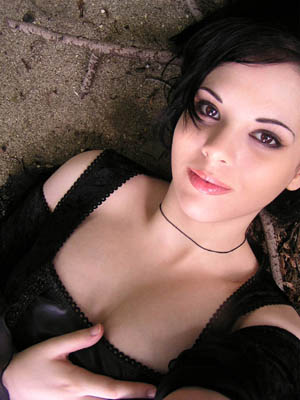
| 1. First, we open the image and clicking twice in the Background we transform it into a layer. Rename it, and call it "original". Duplicating the Layer, we create the "original copy" and duplicating again, the layer "original copy2". | |
 |
|
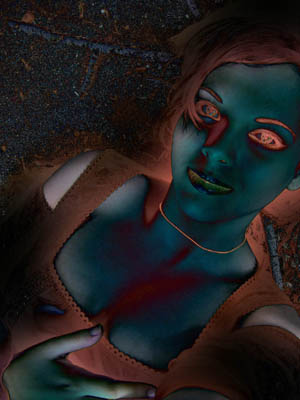
| 2. Now, we need to set the layer "original copy2" to "Difference" with the 100% of opacity and later we apply a Gaussian Blur of 60 px. This may change: Bigger the image, more should be the blur. And now we make some color adjustment (to the layer) using "Hue/Saturation" > Hue: 0, Saturation: +50, Lightness: 0. At this point, weneed to merge the "original copy" and "original copy2". The image looks like the one that I show below: | |
 |
|
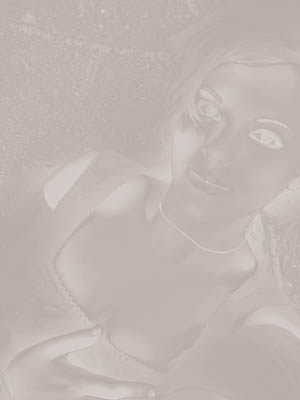
| 3. We change the frontal color for this: C: 30%, M: 30%, Y: 30% and K: 0%. Now, we apply the filter "Neon Glow" with this values: Glow Size: 5, Glow Brightness:15 and the Glow Color with the same frontal color (C: 30%, M: 30%, Y: 30% y K: 0%). | |
 |
|
| 4. To simulate the paper look, we need to apply the filter "Add noise" using: Amount: 5%, Distribution: Uniform and Monocromatic. Then, the filter "Texture" > Texturizer with: Texture: Sandstone, Scaling: 100%, Relief: 4, Light Direction: Top Right. Finally, we desature it: Adjust: Desaturate. | |
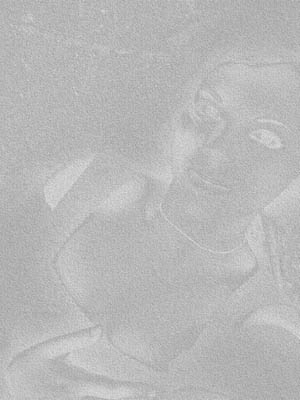 |
|
| 5. Now, we need to move the layer "original" over "original copy 2" (the one with the paper look) setting this to "Hard Light". We desature this > Adjust: Desaturate and add a Gaussian Blur of 2 or 3px. That's all! | |
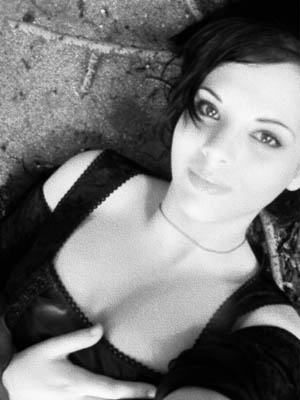 |
|
| 6. You can make some variations changing some things like the image's color: | |
|
|
| Well, that's all for now. I hope you all have enjoyed this tutorial, remember take your time to make some experimentation... God Bless! |
Her
Transforming a photography into a drawing
Added:Jun 22, 2005 Rating:
 Level: Experienced Software:
Photoshop
Level: Experienced Software:
Photoshop
Level: Experienced Software:
Photoshop