


Abstract
This whitepaper contains a detailed description of the so called "NULLSOUND" streaming technique, which can be used for making music for Flash® presentations with the file size 90% smaller than the file size generated by the traditional streaming sounds method, while keeping the animations full sync with the music.
Foreword
We'll start with an overview of the situation and existing techniques on the Macromedia Flash® scene. For detailed method description see the next section!
The
number of animated websites is rapidly growing. To stand out the crowd
it is not enough anymore to use fancy vector images, nice colors and
animations. You also have to create cool sound and music to grab the
attention of viewers. In the "historical past" of Flash® (1998/99)
designers made only simple sound loops just to break the silence of
the web. Then these loops became more and more complex resulting in
file size expansion and increased download times. Also, another demand
became apparent on the market: sophisticated animations (like in the
ads on TV) where graphics events are syncronized to the music or sound
effects. But can a sound in Flash® fulfill all these requiremens
at the same time: small file size, and full sync' with graphics? Macromedia's
solution to the problem was making the STREAM syncronization method
in Flash®.
This technique is useful for two reasons:
The
Flash® player doesn't have to wait for all of the sounds to be
downloaded. Only some pre-buffering is required and the sound could
be started immediately. This is similar to the technique used in RealNetwork's
REALaudio or Microsoft's streaming media. While it works nicely on
high speed Internet connections it creates problems for audiences
of 56k or slower modems. Users of 56k or slower modems can start the
movie before it is completely downloaded but there is a risk of unforseen
freezes during the animation if the bandwidth is too narrow. It is
better to just wait until the whole movie is loaded then start it!
The
other area where STREAM is useful is switching the Flash® player
to "absolute framerate keeping" mode. If you don't use any STREAM
sound (or any sounds at all) and set the movie's framerate to 25 fps
it DOESN'T MEAN that the player will play the movie with 25 fps! The
actual framerate will depend on many things but mainly on CPU power.
The stronger CPU you have the more accurate approximation of the desired
framerate you got. This means that if you have an average movie it
can perform with 8 - 9 fps on a iPentium 166 MHz processor and with
22 fps on iPentium III 500 MHz. If the theoretical framerate is set
to 25 fps it means that the CPU has 1/25 seconds to make all of the
calculations neccessary to display a frame. If the CPU is not fast
enough it will take say 1/5 sec. per frame to perform these calculations
so the practical playback framerate drops to 5 fps. If your animation
contains 100 frames ALL of the frames will be played both in theory
and in practice, but it will happen in 4 seconds in the theoretical
case and in 20 seconds in practice (slowdown effect).
The solution is STREAM sound! Using a STREAM type sound on the timeline
tells the Flash® player: "You have to keep the speed of the sound
playback, slowdown is forbidden!", which results in speeding up the
graphics playback too. Can a slow processor speed up to draw all of
the frames with the theoretical 25 fps? The answer is NO. This speed-up
will be virtual. The CPU just SKIPS FRAMES to keep the framerate which
in the previous example means, that only the 1/5 of the frames are
displayed during the animation (this can cause annoying "jerky" motion
effects in some cases).
In this white paper we don't want to give detailed description about
making EVENT or STREAM type sounds. This topic is well covered in
many resources, like www.macromedia.com,
www.flashmagazine.com
and other tech sites dedicated to Flash® development.
What is paricularly interesting to us all is the advanced use of this
knowledge.
The method
The
STREAM method has a major drawback: extremely inceasing file size.
This is a result of the technique itself. If you use a short sound
which performs in 2 seconds, and want to make loops with it (looping
100 times), the overall length of the sound will be 200 seconds. When
applying STREAM syncronization Flash® includes a sound file 200
seconds long into the exported SWF movie. If the original sound sample
was 10 kb, the final SWF file will contain a 1 Mb sound track. This
is only a rough approximation. It depends on the sound quality and
other factors so in practice this will take about 800 - 900 kb. If
calculating with the 4.5 kb/sec average speed on a 56k modem, this
will take approx. 200 seconds (more than 3 minutes) to download. If
we calculate with the more realistic 2.5 kb/sec as sustained average
speed and some slowdowns or pauses this will easily take 5 - 6 minutes
to download!
So we can say: SIZE DOES MATTER.
It is interesting to observe that the final SWF file size will be smaller if we use smaller sound sample to STREAM to. If the whole music is built up with a technique similar to the method described in the killersound tutorial (www.killersound.com) it is enough to choose only one (for example the smallest) sound sample and set only that to STREAM and the other samples to EVENT. After sophisticated testing we concluded that the sync' between the sound layers will be perfect reqardless of using only one (and not all) samples to STREAM. This means that Flash® can be used as a sequencer.
You can of course set all the sounds to STREAM which will result in SMALLER file size! This seems strange at first but the cause is obvious: this file doesn't contain the remaining sound samples just like in the EVENT mode, only a big "sound timeline" which contains all of the sounds mixed.
But how can we reduce the file size further? If we choose degraded sound quality (i.e. ADPCM, 5 kHz, 4 bit) the result will not be satisfactory. File size will be smaller but music quality is very poor. The solution is the following str0 and str00 technique, the so called "NULLSOUND STREAMING".
But before discussing the techniques, let's have a look at the results of a comparison test!
The test
The
results of these new techniques are best observed in the example of
the killersound intro developed by VR Professionals. The intro contains
cca. 1 minute continuous complex music and sound effects. The applied
five sound samples require different bitrate settings for each sample
to get the best overall sound quality. In this case the bass needs
only MP3, 8 kbit/s (because it contains mainly low frequency), while
the drums with hihat need MP3, 32 kbit/s. According to the techniques
described in details later, we used a 0,1 sec long "NULLSOUND"
sample too.
The intro needs "absolute framerate keeping" because we
apply animation effects precisely synchronized with the music, which
means that STREAM mode is a must.
In the traditional case only one, or all of the sound samples are set to STREAM mode. With these techniques the stream bitrate has to be set much higher, than it would be neccessary for certain sounds, which means that we're wasting space. With the new NULLSOUND streaming technique we can set the quality of each sound samples individually, while keeping the file size low.
The
following table contains the exported SWF file sizes of the intro
at the different techniques.
The str1 and str5 are the traditional ones, while the
str0 and str00 are the new. Keep in mind, that the files
contain the music AND the animation, resulting in much bigger filesizes!
| str1
: |
595 KB music (1.25 MB filesize) |
| str5
: 5 looped samples, ALL set to STREAM@MP3, 48 kbit/s, MONO |
594 KB music (1.24 MB filesize) |
| str0
: "NULLSOUND" streamed @ MP3, 8 kbit/s, MONO, others set to EVENT@optimal settings (samples are set individually) |
192 KB music ! (847 KB filesize) |
| str00: "NULLSOUND" streamed @ MP3, 8 kbit/s, MONO, others set to EVENT@optimal settings (samples are set individually) |
59 KB music !!! (714 KB filesize) |
These
results are self explanatory. If we make a "music-less"
version of the intro (all of the graphics and animations are intact,
but without any music), then the filesize will be 655 KB. If
we calculate the difference between the filesizes, the result is that
the whole music in the str00 case takes only 59
KB !!!
With the traditional streaming technique this would be 595 KB.
We can interpolate further, and get the final results:
| Practically
ANY music within these circumstances (cca 5-6 sound samples
with 2-3 sec length each), with the length of 1, 2, 3 or more
(!) minutes can prepared below
70 - 80 KB. With the traditional streaming techniques this would be around 1 MB, or more! |
Here's how it works!
The str0 technique
Let's
start by choosing as small a sound sample as we can: the "NULLSOUND".
This small WAV file contains nothing but silence and has about 0.1
sec length. Such a file can be made with any sound editor programs.
Then we place this sample on the timeline and loop it as many times
and as long as we want the STREAMed section to last. We use only this
sample to STREAM. The whole music is built up from EVENT sounds on
the timeline with the familiar layered technique. This has the advantage
that we can set the STREAM sound quality to the worst possible setting
(which is actually ADPCM 5 kHz 2 bit) and it WILL NOT SPOIL the music
quality. The event sound quality can be set to i.e. ADPCM 11 kHz 4
bit.
Look at the following pictures that illustrate the process:
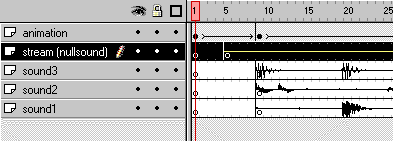
Fig.1. The main timeline of the str0 technique
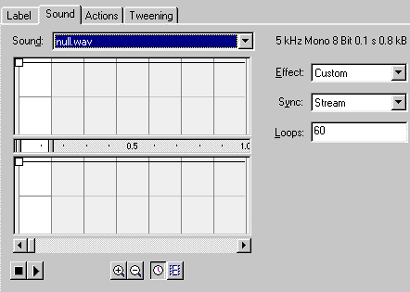
Fig. 2. The sound settings of the NULLSOUND on the timeline
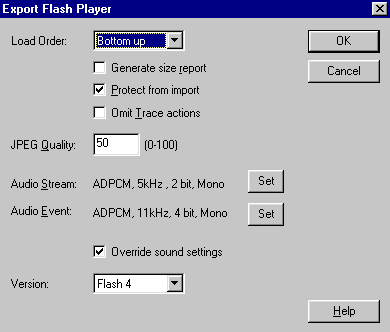
Fig. 3. The sound quality settings for STREAM and EVENT sounds at the Export phase
We can slightly modify this technique to get even smaller file sizes. This is the so called str00 technique.
The str00 technique
We
use the same setting as before but set the NULLSOUND length to only
1 loop. This technique is based on one of the interesting features
of Flash®: if ANY sound on the timeline is set to STREAM it will
switch the player to STREAM mode EVEN if the sound is over. This means
that you can use this small NULLSOUND sample to "SWITCH ON" the streaming
mode. This mode can be easily switched off with the usage of "Stop
All Sound" event on the timeline which stops all of the sounds and
switches off the STREAM mode. With this method you can switch on/off
the STREAM mode any time during the movie which results in switchable
"absolute framerate keeping".
The following pictures illustrate this method.
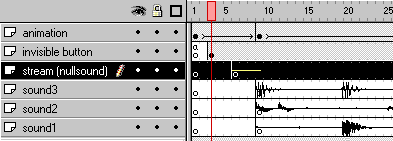
Fig. 4. The modified timeline with a 1 loop long NULLSOUND
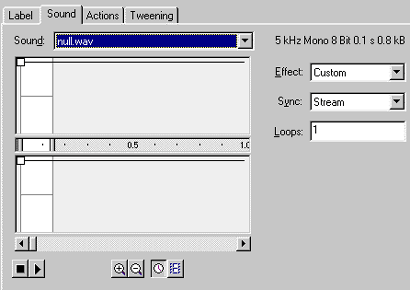
Fig. 5. The setting for the NULLSOUND
Extension to str00 technique
The
only drawback of the str00 technique is that if anyone whatches the
movie in the Standalone player and presses the
To
avoid this error a simple solution is to make an "invisible button"
which will "catch" the
| On (Key:<Enter> Play End On |
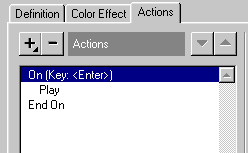
Fig. 6. The Actions setting of the invisible button
This
will "disable" the
FS Command ("showmenu", "false")
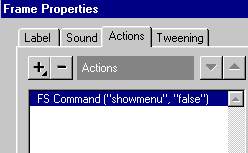
Fig. 7. The Actions setting for disabling the popup menu
With the usage of these actions the movie became practically "unstoppable".
