

1) Make a new document, anysize doesn't matter. Press CNTRL+D to reset your pallete colors. Start off with any color of background, I used white.
2) Make a new layer. Use the Rounded Rectangle Tool
 and make a button shape like below:
3) Now right click the new pill layer and apply these blending options:
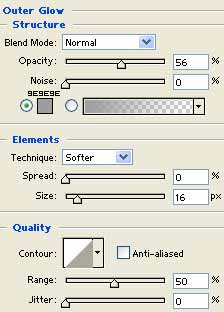
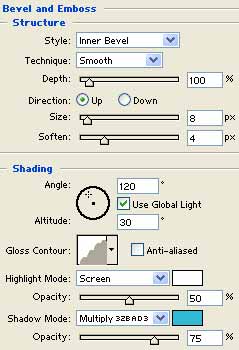
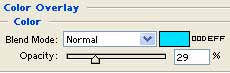
4) Make another new layer thats above the pill button layer. Make a selection like below:
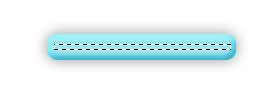
Fill it in with white:

5) Now we want to blur it to get the glossy effect. Go to Filter>Blur>Motion Blur and use these settings:
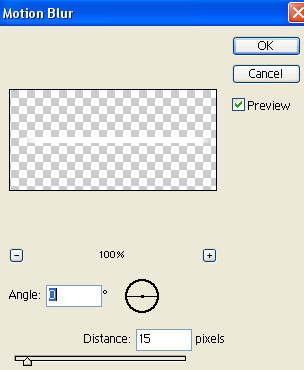

6) Now place the gloss where you want it, I placed it at the top, use the eraser to remove any unwanted gloss.

Done!
