This article will aid you if:
You’re saving an image and it suffers quality degradation similar to this, roll over the image to view the end result after following this tutorial:

Here are the things to check if your image is saving like the one above. Go to
‘File > Save As’ and select a file type other than PSD. Click save. I have chosen to save my image as a GIF. Hit save (again).
If you are asked to flatten layers, then select ok. This means that all the layers will basically merge to create one image, this is required and the image cannot be saved as anything other than a PSD without doing this.
Now we come to the most essential part, the indexed colour options. Make sure that your settings look like mine:
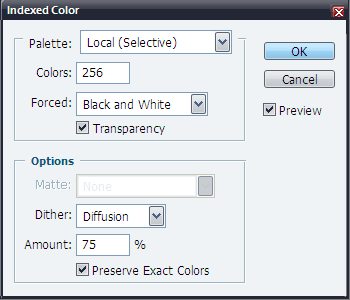
Click ok, and on the next windows that appears I suggest setting ‘Normal’, but it depends on your preferences. An image set to normal will not display in a browser until it is completely loaded, but an image set as interlaced will display lower quality versions of itself whilst it loads. This unfortunately, though, causes a larger file size.
This is what we get:

Substantially improved, but still not as good as it could be. For some images this might be fine, but for others further steps are required. Go back to your image in Photoshop and go to ‘Image > Mode > 16 Bits/Channel’ also make sure ‘RGB Colour’ is checked.
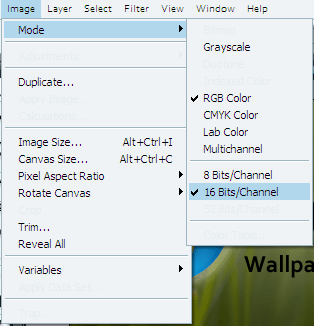
Then return to the ‘File > Save As’ menu. You’ll notice that there is significantly less file formats to choose from than before, this is because only few are capable of containing an image of such quality. You will also notice that the only other options you are given is whether the image should be interlaced or not.
I have chosen to save my image as a PNG this time, and my result is exceptionally good quality in comparison to the other file formats. Here is the end result.