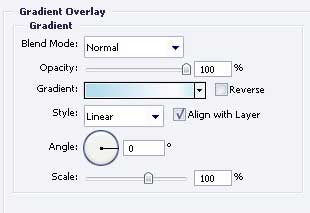
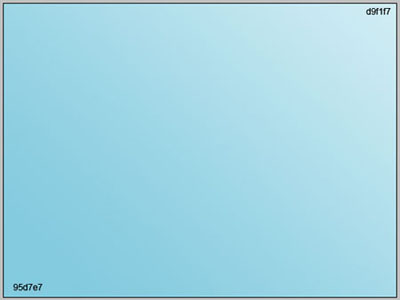
Create a new file with 800x600 px and 72 dpi. Having the next instrument  , it's possible to represent the background (colors' codes are indicated)
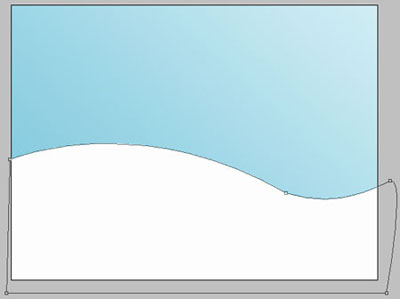
Take the following instrument  and represent a picture of white color, like the next one:
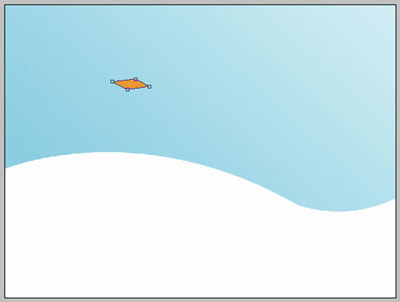
Using the same instrument, draw a figure of this color – FLA23D.
The previous instrument will be helpful in representing another figure of next color – EE931E, like it is shown next step.
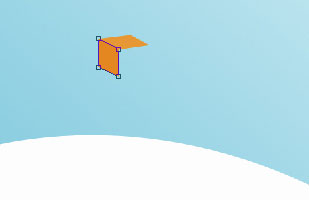
And one more with the color ED8500.
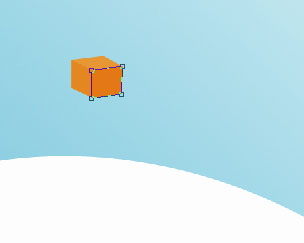
Take the same tool to picture a figure with the color F73E60, like the next image demonstrates it.
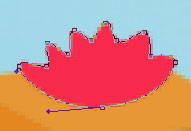

Take the last instrument to insert another image, but this time it must have the color 36A972.
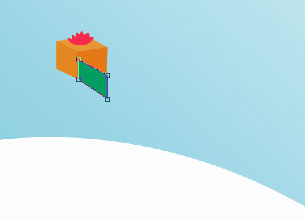
Another one with the next color – 26A065.
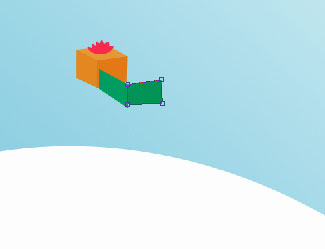
Take the next tool again and draw a picture with the color's code 5CB98C, that must look exactly like that one from below.
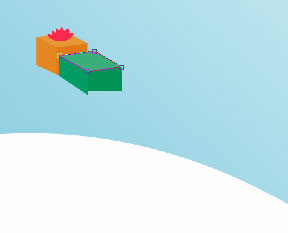
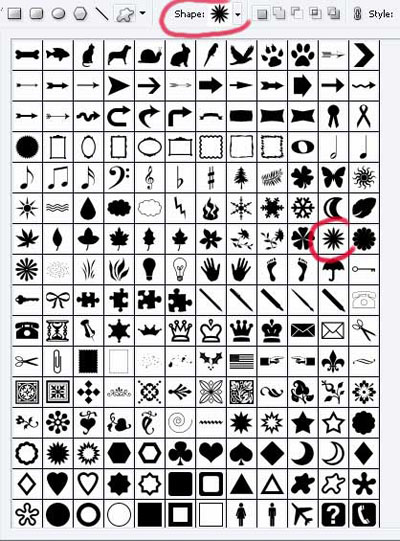
Using a different tool now  , choose a special corresponding cliché from the table below.
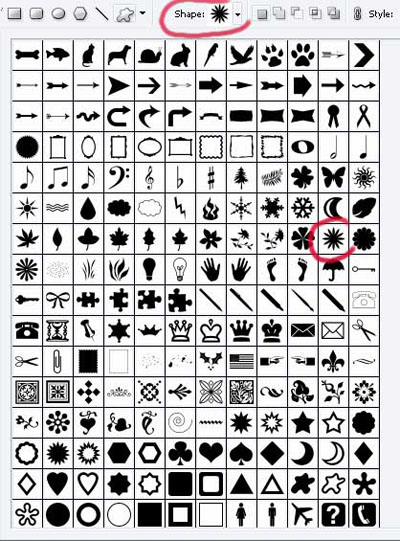
And paint it in DB002A.
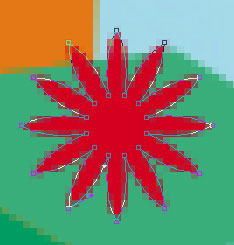

Get back to the old instrument and represent a figure of the following color – DB002A, like next picture shows it.
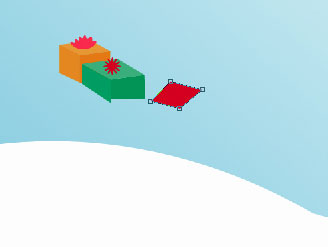
Take the previous instrument to add one more figure with the color – DE2044.
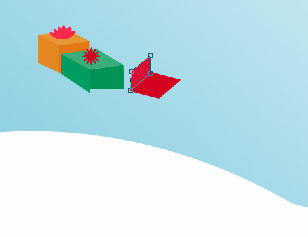
The same instrument, but another picture and a different color – E23D5D.
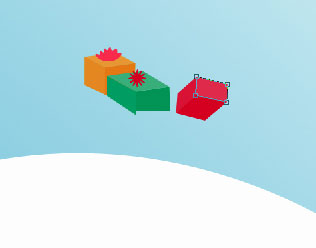
Apply the following instrument again to choose an appropriate cliché from the next table.
Paint it now in FFDE00.

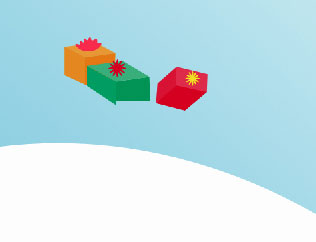
Insert the same way, used before, several other boxes of different sizes and colors, on your wish.

Use now this instrument to picture a bear toy's silhouette that must have the color A9744C.
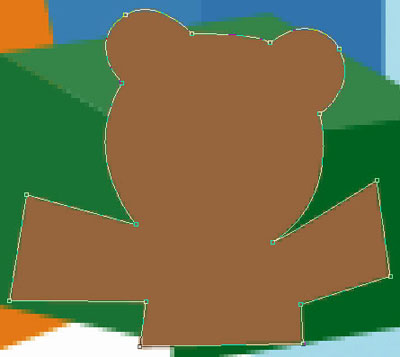

Pass to another tool now,  to represent bear's eyes. They must have the color 633A24, exactly like in the next picture.

Applying the last instrument, create a circle with the following color – D3A981, like next image.

Make use of the old instrument and insert another circle with 633A24 color, like that one from below.


Pass to another instrument to picture the toy bear's mouth. Its color must be 633A24, like it is shown next step.


The last instrument may be useful in picturing the figure from next image with the same parameters.
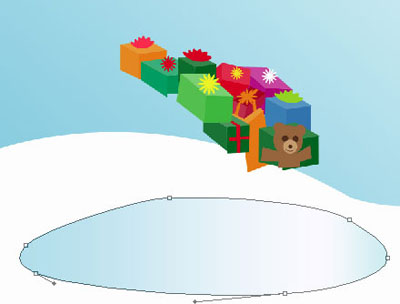
Blending Options-Gradient Overlay