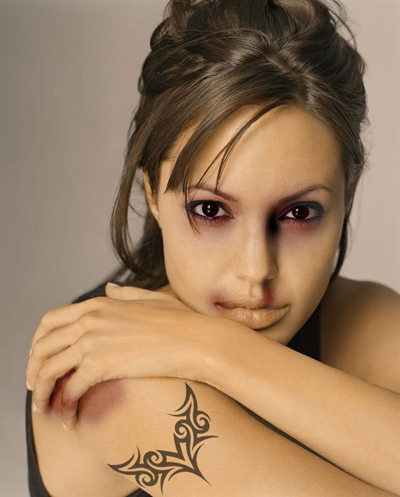
Today i will show you a simple method how to play with someone's face.
I will use a photo with Angelina Jolie. I will work on this photo because it is a very nice photo and i will try to make as ugly as i can.
After you open the next image in Photoshop click Ctrl+J to duplicate the layer:

Then Select Elipse Tool and create 2 small circles. I have used the color : #7b0a02
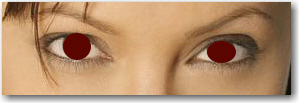
Then change the opacity to: Overkay for this 2 small circles. ( you can change the overlay for the layer palette )
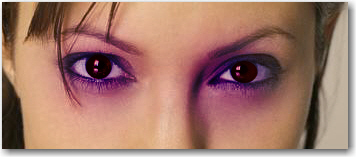
This is the result:
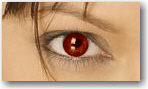
Then Create a new Layer and Choose a Soft Round 150 pixels brush
Change your Foreground color to #0f0176 ( Dark Blue ) and on the new layer make 2 small points like in the next image:
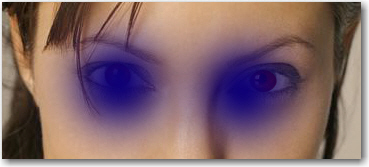
Now change the opacity to Overlay one more time.This is the result.
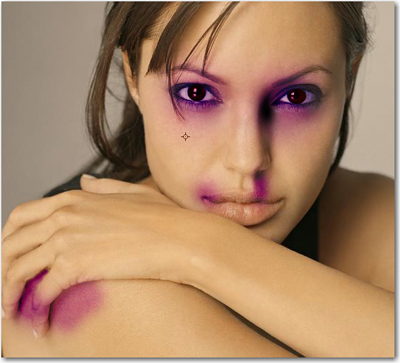
Now with the same technique create more blue dots, for example on the lips. i will make this simple steps. This is my result.
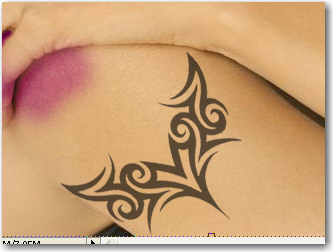
Now we will add more details. I will add a tatoo on the right arm. I will use thie next image. With the Magic Eraser Tool delete the white background:

Then with the move tool , place and rotate the tatoo:
It is good if you change the opacity to 60-80 %
Now Create a new Layer ( press Ctrl+Shift+Alt+N )
With the paint Buchet tool fill this layer with #7d5c39
Then change the Blending mode to Overlay and the Opacity to 70 %
You can add more details. You can play a little with the liquify tool. this gives also good result when you are tring to change someones's face
And this is my final Image